Pipeline Versions & Publishing
Manage your pipeline with versioning – draft, test, and publish changes without affecting your live virtual being.
Every pipeline in the Conversation Editor is versioned. You can maintain multiple versions simultaneously – working on a draft while keeping a stable live version running for your users.
Understanding Versions
Each version of a pipeline has one of two states:
- Draft – A work-in-progress version. Not visible to end users unless explicitly assigned to a profile for testing. You can have multiple Draft versions open at the same time.
- Retired – A previous version that is no longer active. Retired versions are kept for historical reference.
The currently active (published) version is what your real users interact with.
The Versions Dropdown
The Versions dropdown at the top of the editor shows all versions for the current pipeline. Each entry displays:
- Version name (e.g.,
Default (v2),V2,Demo Retail V1) - Status badge (
DraftorRetired) - Creation date
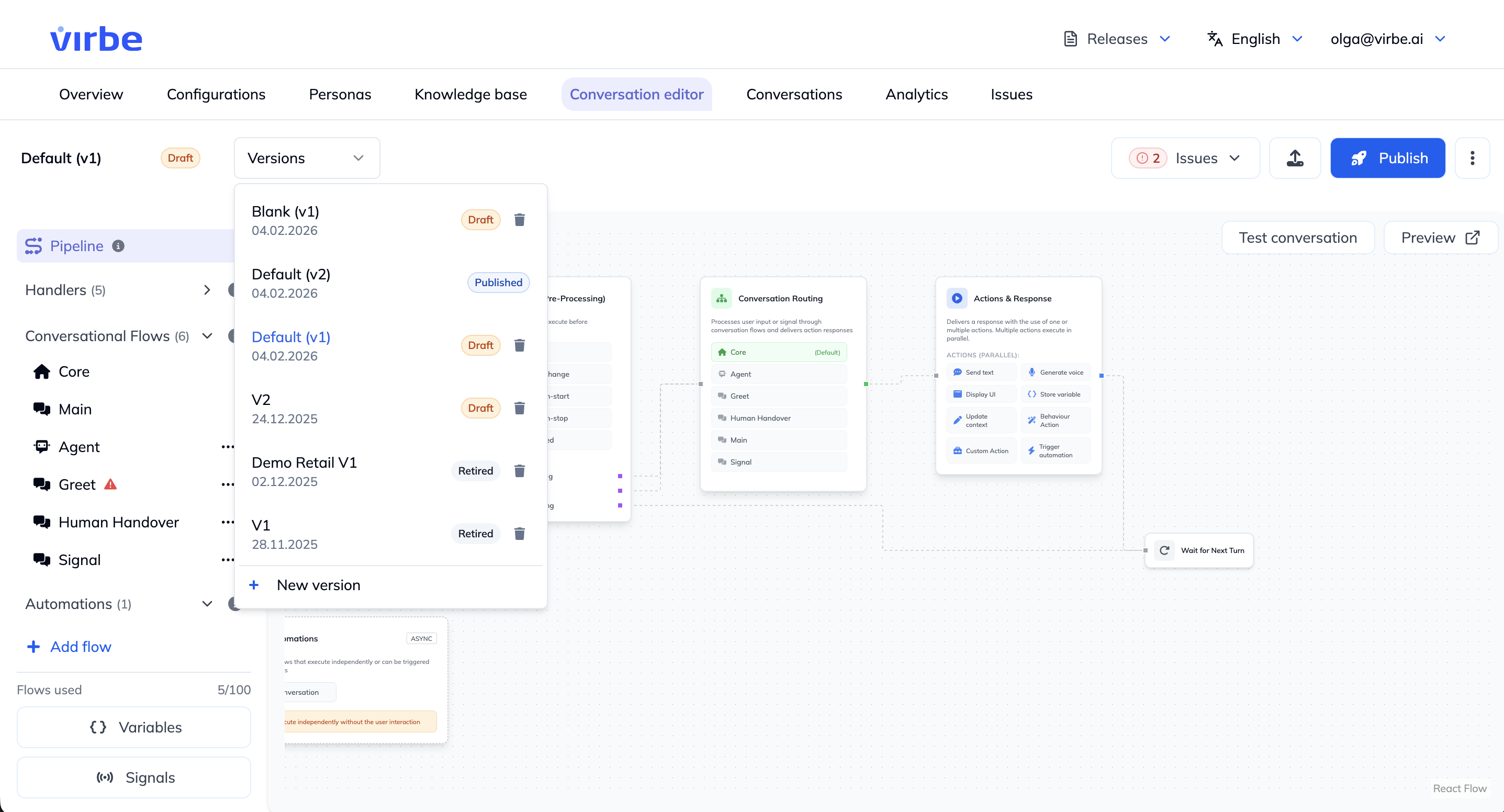
To switch between versions, click Versions and select the one you want to view or edit.
To create a new version, click + New version at the bottom of the dropdown. The new version starts as a copy of the currently selected version.
Publishing
When your draft is ready to go live, click Publish in the top-right corner. This makes the current draft the active version that all users interact with. The previous active version becomes Retired.
Publishing is immediate – once you click Publish, the new pipeline is live for all users on any profile it is assigned to. Test thoroughly before publishing.
Assigning a Draft to a Profile
You can route a specific draft version to one profile for testing, while the published version remains live for everyone else. This lets you validate changes in a real environment without affecting all users. Availability of this option may depend on the subscription plan you have.
To assign a draft:
- Select the draft version in the Versions dropdown
- Click the three-dot menu (⋮) next to the Publish button
- Choose Assign draft to profile
- Select the profile you want to test with
Only users on that profile will see the draft version. All other profiles continue using the published version.
Testing Before Publishing
Two tools let you test your pipeline without publishing:
Test Conversation
Click Test conversation in the top bar to open a live chat panel directly inside the editor. This uses the currently selected version (draft or published) and simulates a real conversation. Changes you make are reflected immediately – you do not need to save or publish to test.
Preview
Click Preview to open a preview of the widget in a new browser tab. This shows the full visual experience as your users will see it, including the avatar and the widget UI.
Test conversation runs within the editor and is scoped to your workspace. Preview opens the full public widget – useful for checking the visual appearance and widget behavior.
Configuration change control
Changes to configuration — including persona, system instructions, conversation flows, knowledge base content, and language settings — take effect immediately upon saving. There is no automatic rollback.
Virbe recommends the following change-control practices:
- Use versioning — create a new pipeline version before making material changes. This preserves the previous configuration state and allows rollback by reassigning the previous version to the profile.
- Test before publishing — use the Test Conversation panel and assign a draft to a staging profile before publishing changes that affect production users.
- Document changes externally — maintain a change log recording what was changed, why, who authorised it, and when it was published. The Dashboard does not currently provide a full audit trail of configuration changes — this log is your evidence of configuration state at any given point in time.
If the virtual being behaves unexpectedly after a configuration change, restore the previous pipeline version as the first diagnostic step.