Data Tables
Structured, row-and-column data – product catalogues, pricing tiers, and anything else your virtual being needs to look up precisely.
Table documents are one of three document types you can add to a Knowledge Base collection. Unlike Website or Text documents – which store narrative, unstructured content for semantic retrieval – Table documents store structured, row-and-column data that can be queried with exact filters.
Use Tables when accuracy matters more than semantic similarity: product specs, pricing, location details, configuration values. Tables are queried via the Find Records node in the Conversation Editor, which retrieves rows matching a filter expression.
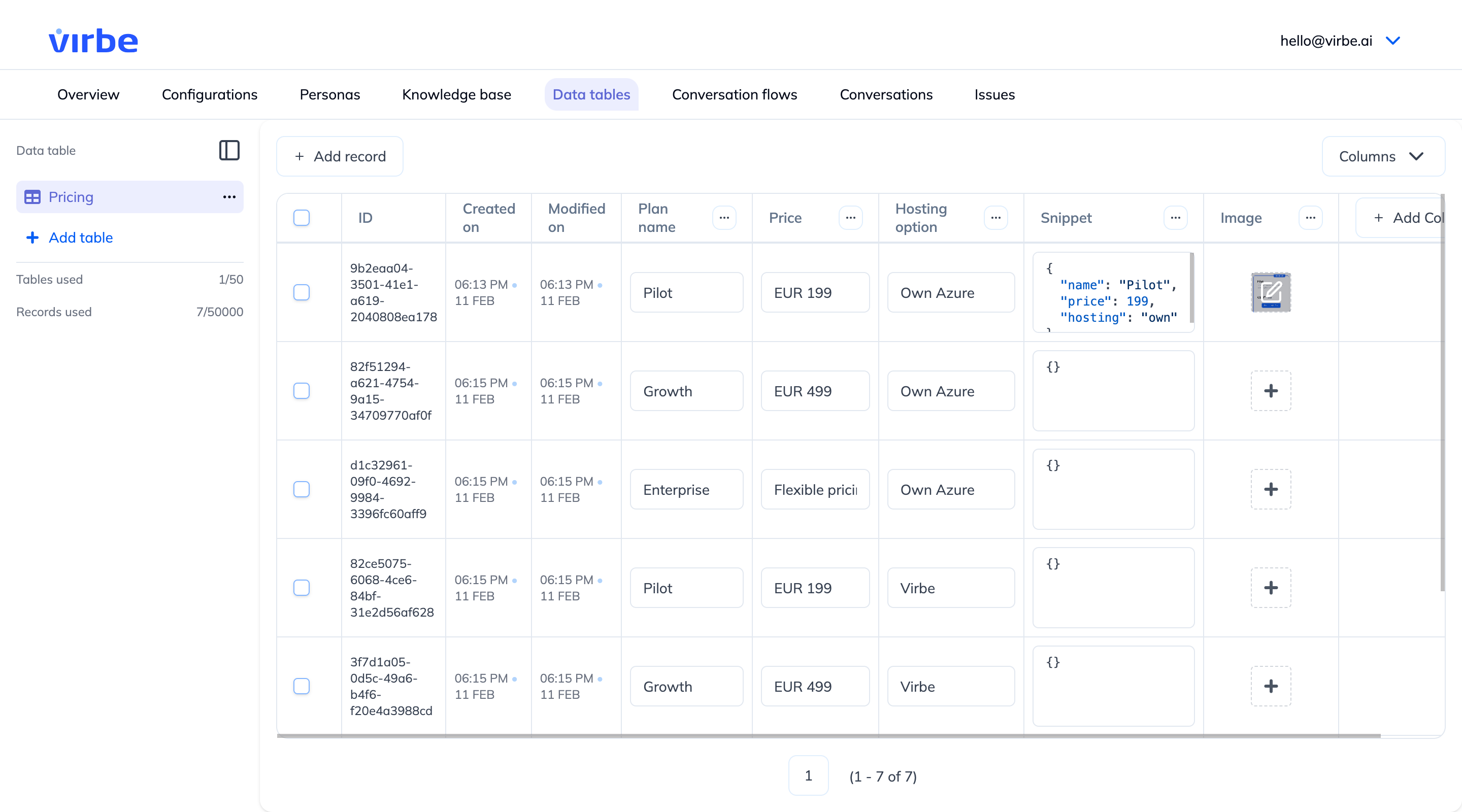
Column types
When you create a table, you define its columns. Each column has a name, a data type, and an optional description.
A column's data type can only be set at creation time – it cannot be changed later.
Basic types
| Type | Use for |
|---|---|
| String | Text values – names, descriptions, codes |
| Number | Numeric values – prices, quantities, scores |
| Boolean | True/false flags – availability, active status |
| Date | Calendar dates |
| DateTime | Dates with time information |
Rich content types
| Type | Use for |
|---|---|
| Image | Product photos or visual assets |
| JSON | Structured sub-objects – e.g. a list of features, a nested spec sheet |
| Code | Code snippets (less common) |
Creating a table
- Navigate to Knowledge Base in the Dashboard
- Select or create a collection where the table belongs
- Click + Add document → Table
- Give the table a name
- Click + Add Column for each column, setting its name and data type
- Click Save
Adding records
Once the table structure is defined:
- Open the table document
- Click + Add record
- Fill in the values for each column
- Click Save record
You can edit or delete any existing record by clicking on it.
Querying tables in conversation flows
Tables can be both referenced by semantic search, as well as queried directly using the Find Records node. In the node, you specify:
- Table – which document to query
- Filter expression – conditions that rows must match (e.g.
SKU equals {{var.userInput}},Price less than 100) - Output variable – where the matched rows are stored for use in subsequent nodes
Results can then be presented to users with a Cards from Table node (visual product cards) or referenced via variable interpolation in a Text or LLM Response node.
When to use Find Records vs Tool Agent (RAG)
| Scenario | Use |
|---|---|
| User asks "what's the price of Product X?" | Find Records – exact match needed |
| User asks "tell me about your product range" | Tool Agent + RAG – summary from embedded content |
| Filtering by specific attribute (colour, size, price) | Find Records – structured filter |
| Open-ended knowledge question | Tool Agent + RAG – semantic retrieval |
You can combine both: use Find Records for precision lookups and pass the result as context into a Tool Agent node.
Best practices
Match column names to how your flows query them. Column names appear in the Find Records filter builder – clear, consistent names prevent confusion when setting up filters.
Keep one table focused on one entity. A Products table, a Locations table, a Pricing table – rather than one large mixed table. This makes filters simpler and results more predictable.
Use Number type for anything you'll compare. If you store price as a String, range comparisons (less than, greater than) will not work correctly.
Add descriptions to complex columns. The optional column description is visible when configuring filters in the Conversation Editor – it helps team members understand the column's purpose without having to open the table.
For content that changes frequently, prefer Text or Website documents. Tables require manual record management. If the data lives in a website or can be summarised as prose, those document types update more easily.
Example table structures
Product catalogue
Columns:
- Product ID    (String)
- Name          (String)
- Price         (Number)
- Category      (String)
- Image         (Image)
- Specifications (JSON)
- In Stock      (Boolean)
Use with Find Records to filter by category or price range, and Cards from Table to present results visually.
Service pricing tiers
Columns:
- Plan Name     (String)
- Monthly Price (Number)
- Features      (JSON)
- Available     (Boolean)
Use to present plan comparisons or answer "what's included in the Pro plan?".
Location directory
Columns:
- Location Name  (String)
- Address        (String)
- Opening Hours  (String)
- Phone          (String)
- Region         (String)
Filter by region to return only nearby locations.
Data Tables are best for structured, factual data where precision matters. For narrative or context-heavy content – policies, FAQs, product descriptions – use Text or Website documents instead. Combining both types in the same collection gives you the best of both worlds.