Knowledge Base
Organize and store the information your virtual being uses to generate grounded, relevant responses via RAG (Retrieval-Augmented Generation).
Retrieval-Augmented Generation
Documents you add here are embedded as vectors and retrieved at conversation time by the Tool Agent or LLM Response nodes, whenever Enable Knowledge (RAG) is turned on – letting the AI ground its answers in your specific content instead of relying solely on its training data. Retrieval can be scoped to specific collections, so different flows can search different subsets of your Knowledge Base.
Structure
Collections
Collections are folders that group related documents together. A well-organized collection structure helps the AI retrieve the most relevant information quickly, and lets you filter knowledge retrieval to specific topics in your conversation flows.
Common collection structures include:
- Products (one collection per product line, or all products in one)
- Policies & procedures
- FAQs
- Location or department-specific information
Document types
Virbe supports three document types, each suited to different kinds of content:
Website
A Website document connects to a URL or sitemap and automatically crawls and indexes web pages. This is the best option for keeping your Knowledge Base in sync with content that already lives on your website or documentation portal.
Each website source shows:
- Last scanned – when the crawler last visited the URL
- Created on – when the source was added
- Crawling enabled toggle – pause or resume automatic re-crawling
- Crawl manually button – trigger an immediate re-index
- A preview of the extracted text
To add pages individually, use + Add page. To pull in an entire site at once, enter your sitemap URL and click Import from sitemap – Virbe fetches every URL listed and queues them for crawling.
Text
A Text document is a manually written or pasted document with a rich text editor. Use this for content that doesn't exist on a public URL – internal policies, scripts, FAQs, product knowledge written specifically for the assistant.
The editor supports bold, italic, underline, bullet lists, links, and images. Each document has a Document name field used to identify it in the collection list.
Table
A Table document is structured data in a spreadsheet-like view. Each table has custom columns you define (+ Add Column), and rows added with + Add record.
Tables are the right choice for:
- Product catalogues (name, SKU, price, description per row)
- Location directories (name, address, opening hours)
- Any data the assistant needs to look up by attribute
Table documents are queried using the Find Records node in the Conversation Editor, which retrieves rows matching a filter expression.
See Data Tables for the full reference on column types, creating and managing records, and querying patterns.
Managing Collections
To create a collection:
- Navigate to the Knowledge Base section
- Click + Add collection
- Enter a descriptive name for the collection
- Click Save
You can rename or delete collections from the three-dot menu (⋮) next to the collection name. Documents can be moved between collections by editing the document and reassigning it.
Managing Documents
Creating a document
- Select the collection where the document belongs
- Click + Add content
- Choose the document type: Website, Text, or Table
- Fill in the content as appropriate for the type
- Click Save – the document is immediately queued for embedding
Editing a document
Click on any existing document to open it. Make your changes and click Save – the document will be re-embedded automatically.
Adding images to Text documents
Text documents can include images to provide additional visual context. To add an image:
- Open the document in edit mode
- Use the image button in the toolbar
- Upload or drag-and-drop an image file.
How Retrieval Works
When a user sends a message and the Tool Agent or LLM Response node has RAG enabled:
- The user's message is converted into a vector embedding using the embedding model configured in AI Models
- The embedding is compared against all document embeddings in the selected collection(s)
- The most semantically relevant document chunks are retrieved
- Retrieved content is injected into the AI prompt as context for generating the response
This means your virtual being can answer questions grounded in your specific Knowledge Base content, reducing hallucinations and improving accuracy.
If you change the embedding model in AI Models after documents have been added, the existing embeddings will be based on the old model and retrieval quality may degrade. Re-save your documents (or re-import your content) after changing embedding models to regenerate embeddings with the new model.
Filtering Knowledge by Collection
In the Tool Agent and LLM Response nodes, you can enable Filter Knowledge Base to restrict RAG retrieval to one or more specific collections. This is useful when:
- Different flows handle different topics (e.g., a Product flow should only search the Products collection)
- You want to avoid irrelevant documents appearing in retrieved context
- You need to separate internal vs. customer-facing information
Best Practices
Keep documents focused and specific. One document per topic, FAQ item, or product works better than long documents covering many things – shorter chunks retrieve more precisely.
Write content the way your users will ask about it. If users say "how do I return something?", include that phrasing in the document, not just formal policy language.
Use descriptive collection and document names. These names appear in the LLM nodes' filter picker and make it much easier to configure knowledge retrieval correctly in your flows.
Review and update content regularly. Outdated information in the Knowledge Base leads to incorrect or confusing responses. Schedule periodic content reviews, especially after product changes or policy updates.
Storage usage
The bottom of the left sidebar shows a Storage usage panel with three indicators. Hover each percentage to see the detailed tooltip:
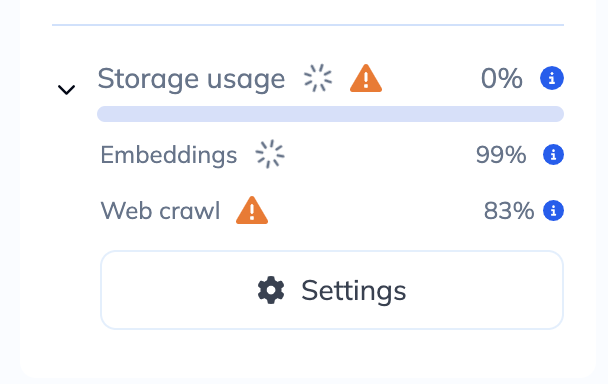
| Indicator | Tooltip shows |
|---|---|
| Storage | Used MB / Total capacity MB |
| Embeddings | Processed count / Documents to process / Documents with errors |
| Web crawl | Crawled pages / Pages to crawl / Pages with errors |
The Settings button in this panel opens the KB Configuration page, where you control the embedding model, chunk size, and crawling settings.
If the Embeddings indicator shows a high error count, go to KB Configuration to review your embedding model settings, or check that your AI model credentials are valid under Configurations → AI Models.