Profiles
Profiles are deployment configurations that let you adapt your virtual being for specific touchpoints – web widget, kiosk, and more.
Deploying to Multiple Touchpoints
While a Dashboard defines a single virtual being – its knowledge, pipeline, and persona – a Profile lets you deploy that same virtual being across multiple touchpoints, each with settings optimized for its specific environment and audience.
For example, the same virtual being could be deployed as:
- A floating chat widget on your website (Web widget profile)
- A full-screen kiosk in your physical store (Metahuman Kiosk profile)
- A test environment for conversation development (Dashboard Web Preview profile)
Each profile shares the same Knowledge Base, Conversation Editor pipeline, and Personas from the Dashboard, but has its own deployment-specific settings for interaction mode, appearance, signals, and behavior.
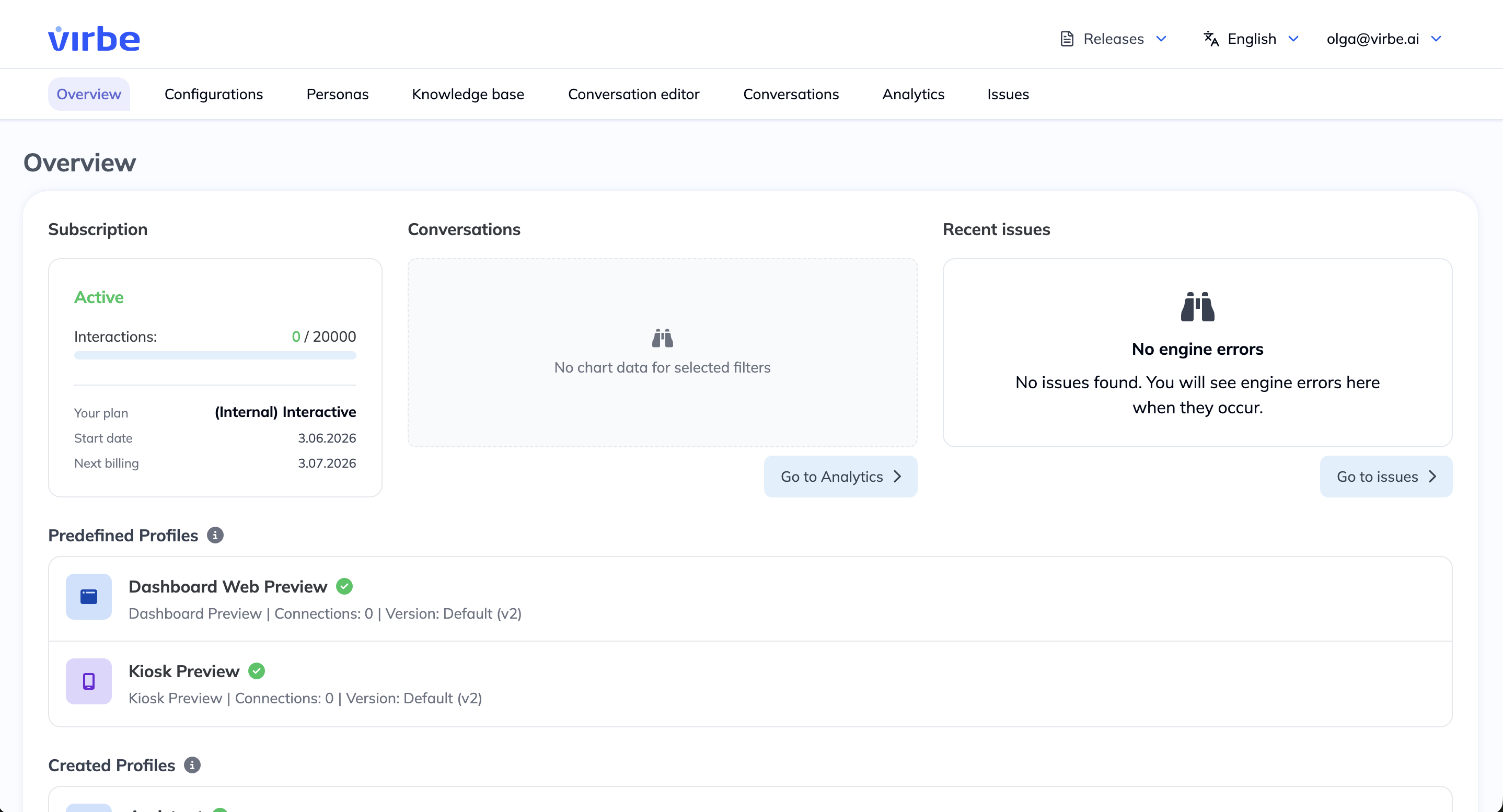
Predefined vs created profiles
Not all profiles are meant for production use. Virbe distinguishes between two types:
Predefined profiles (testing only)
Every Dashboard comes with two predefined profiles created automatically. They cannot be deleted and are not intended for real users:
| Profile | Touchpoint | Purpose |
|---|---|---|
| Dashboard Web Preview | Web widget | Quick in-editor testing via the Test conversation panel and Preview button. No authorized domain, embed code, or Configuration Link required. |
| Kiosk Preview | MetaHuman Kiosk | Tested the same way as a real kiosk deployment: install the Virbe Kiosk (Unreal Engine) app on a dedicated device and connect it via this profile's Configuration Link. Typical use is a test device kept in an office or lab, so you can validate a pipeline version on real kiosk hardware without touching your production kiosk. |
Dashboard Web Preview has no deployment mechanism at all – it's tested entirely inside the Conversation Editor. Kiosk Preview is different: since there's no way to preview a Metahuman avatar without the actual Kiosk app, it still exposes a Configuration Link so you can connect a dedicated test device. Preview profiles can remain limited compared to created profiles – they can have fewer configuration options and aren't meant to serve real end users.
Do not use predefined profiles as your production deployment. Dashboard Web Preview never leaves the editor, and Kiosk Preview is meant for a dedicated test device – neither is designed to reliably serve real end users at scale.
Created profiles (production-ready)
Any profile you create yourself is a full production-capable profile. These have all tabs: General, Language, Persona, Settings, Deployment, and Maintenance. The Deployment tab provides the embed code (Web Widget) or Kiosk Configuration Link needed to connect Virbe to your actual touchpoint.
When you're ready to go live, always deploy from a created profile – not a predefined one.
See the Publish section for how Pipeline publishing and profile deployment work together.
Creating a Profile
- Navigate to the Profiles section of the Dashboard
- Click + Add profile
- Enter a name for this profile (e.g., "Website – English", "Retail Kiosk – Paris")
- Select the Touchpoint type:
- Web widget – For embedding in a website
- Metahuman Kiosk – For Unreal Engine-based kiosk installations
- Click Create – the profile editor opens
Multiple profiles
You can create as many profiles as your subscription plan allows. Common multi-profile setups include:
- Language variants – One profile per language (e.g., English, French, German) each with language-specific voices and potentially different pipeline versions (although one profile can serve multiple languages, sometimes it's a good idea to separate locations by language)
- Channel variants – Web widget for website visitors + Kiosk for in-store
- Testing vs. production – A staging profile assigned to a Draft pipeline version and a production profile assigned to the published version
Profile sections
Every web and kiosk profile has the following sections:
General (all profiles)
General information about the profile, number of active connections, add additional context for LLMs.
Language (all profiles)
Set the default language and Speech-to-text engine.
Persona (all profiles)
Select which Persona from the Dashboard this profile uses. The persona determines the virtual being's name, avatar, bio, and voices.
Settings (touchpoint-specific)
Configure the interaction behavior, appearance, and hardware-specific options for the chosen touchpoint. Settings differ significantly between Web widget and Metahuman Kiosk profiles.
Deployment (touchpoint-specific)
Access the embed code or app configuration needed to deploy the virtual being – see the Deployment tab reference. Full deployment guides:
Maintenance (all profiles)
The Maintenance tab lets you temporarily disable a profile without deleting it.
Before configuring a profile, ensure your Configurations are complete – at minimum one STT engine, one TTS engine, and one AI Model must be configured for full voice and AI functionality. See Configurations for setup.