Personas
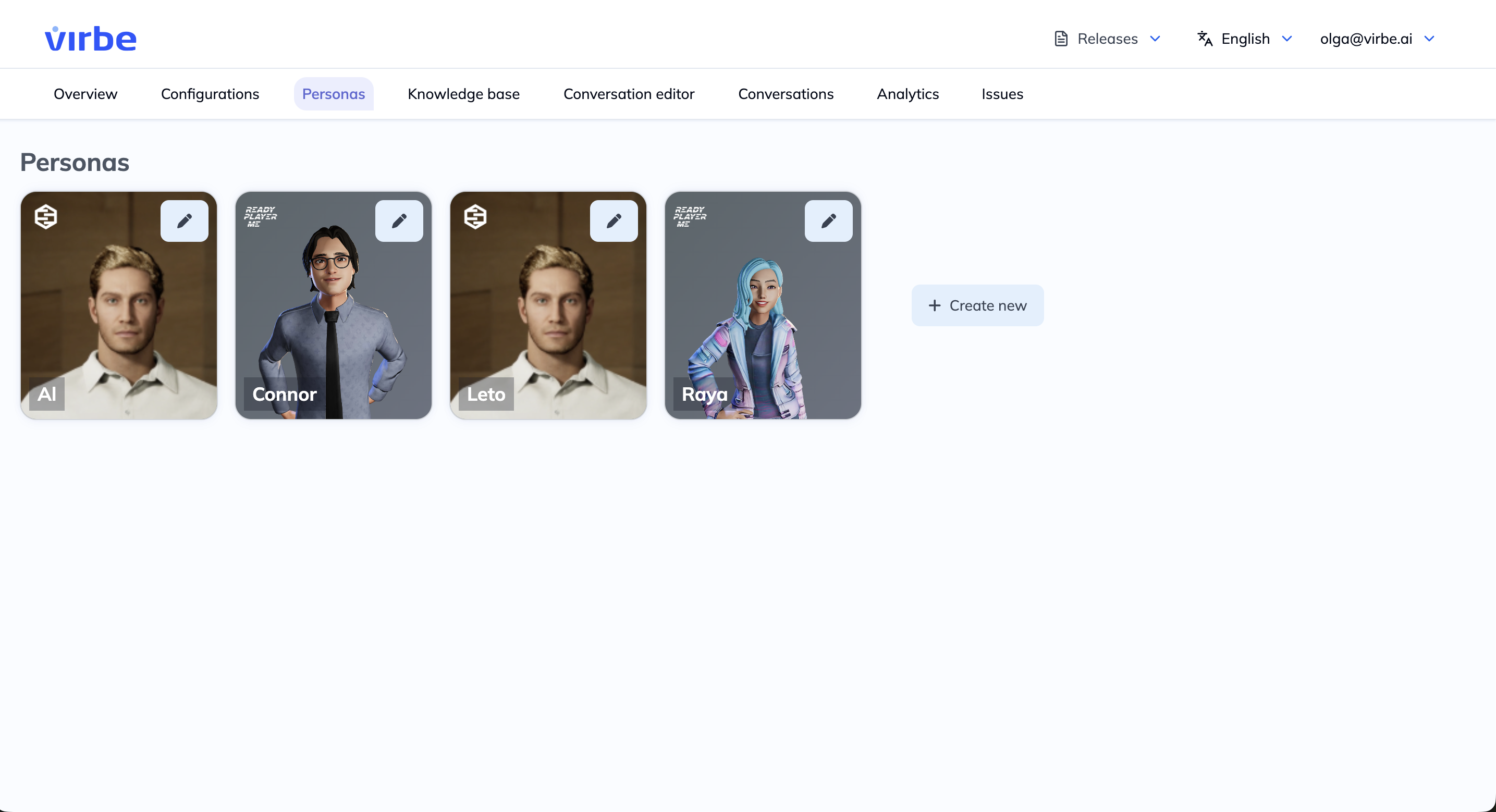
Personas define your virtual being's identity, appearance, and voice. Configure name, bio, avatar, and multilingual voice settings here.
Identity, Voice, and Appearance
Each Dashboard can define multiple Personas, and every Profile is assigned one – determining how the virtual being presents itself in that particular deployment. Switching a Profile's Persona instantly changes its name, personality, appearance, and voice without touching the underlying conversation logic.
Identity
The Identity section defines the core characteristics of your virtual being.
Basic Information
| Field | Description |
|---|---|
| Name | The virtual being's display name (shown in the widget and used by the AI in responses) |
| Age | Numerical age – used by the AI to inform response style and self-description |
| Role | Professional role or function (e.g., "Sales Assistant", "Museum Guide", "Support Specialist") |
Bio
The Bio is a free-text description (up to 2,000 characters) that shapes how the virtual being presents itself. Write the bio in the first or third person. A strong bio typically includes:
- Personality traits and communication style
- Areas of expertise and what the virtual being can help with
- Tone guidance (formal, friendly, concise, detailed, etc.)
- Any specific phrases or greetings to use or avoid
The bio is passed to the AI as part of the system prompt in Tool Agent and LLM Response nodes, directly influencing the quality and consistency of AI-generated responses.
The more specific and well-written the bio, the more reliably the AI will stay in character. Include example phrases or response styles where helpful.
Avatar
The avatar section determines the visual representation of your virtual being. Click Change avatar to open the avatar gallery and select from the available options.
Avatar Types
| Type | Description | Touchpoint |
|---|---|---|
| Metahuman | Photorealistic Unreal Engine avatar; the highest-fidelity option | Kiosk only |
| Custom Web | Custom 3D avatar configured for the web widget | Web widget |
| Ready Player Me | (Deprecated) Legacy avatar type; supported for existing deployments | Web widget |
The avatar gallery shows approximately 20 built-in options across avatar types. For custom avatars or brand-specific avatar development, contact the Virbe team.
Avatar type compatibility is tied to the deployment touchpoint. Metahuman avatars are only available in Kiosk profiles; Custom Web avatars are used in Web widget profiles. Selecting an incompatible avatar for a profile type will result in the avatar not rendering or other errors with the functioning of the profile.
See the Avatars page for a full breakdown of each avatar type.
Voices
The Voices section configures how your virtual being speaks. Voices are powered by the TTS engines configured under Configurations → Text-to-Speech.
Default Voice
Select the Language and Voice for the persona's primary language. The voice options available depend on which TTS engines you have configured.
Multilingual Voices
To support multiple languages, add per-language voice configurations:
- Click + Add language voice
- Select the additional Language
- Choose a Voice from your configured TTS engine for that language
- Repeat for each supported language
When the virtual being switches language (via the Change Language node or Accept Language Change handler), it will use the voice configured for the new active language.
Select a multilingual voice as your default wherever possible – many TTS providers (Azure, ElevenLabs) offer voices that perform well across multiple languages, reducing the need to configure many separate voice entries.
Voice preview
Before saving, you can audition any voice directly in the Persona editor using the Voice tester. Click the play button next to any configured voice entry to hear a sample spoken in that voice.
If you are editing a voice entry, a warning is displayed if unsaved changes would affect the preview – save first to test the updated configuration.
Voice availability depends on the TTS engines configured in Speech & Language → Text to Speech. If no voices appear in the dropdown for a language, check that you have a TTS engine configured and that it supports the selected language.