Dialogflow
Connect your virtual being to a Google Dialogflow ES or CX agent for intent-based conversational responses.
Google Dialogflow is Google's conversational AI platform. If you already have a Dialogflow agent – ES (intent-based) or CX (flow-based) – you can use it as the Conversational Engine for your virtual being: Virbe forwards user messages to your Dialogflow agent and delivers the agent's responses.
Prerequisites
- A Google Cloud project with a Dialogflow ES or Dialogflow CX agent
- Access to the Google Cloud Console with permission to manage service accounts in that project
Configuration
Add the engine under Configurations, selecting Dialogflow ES or Dialogflow CX as the provider.
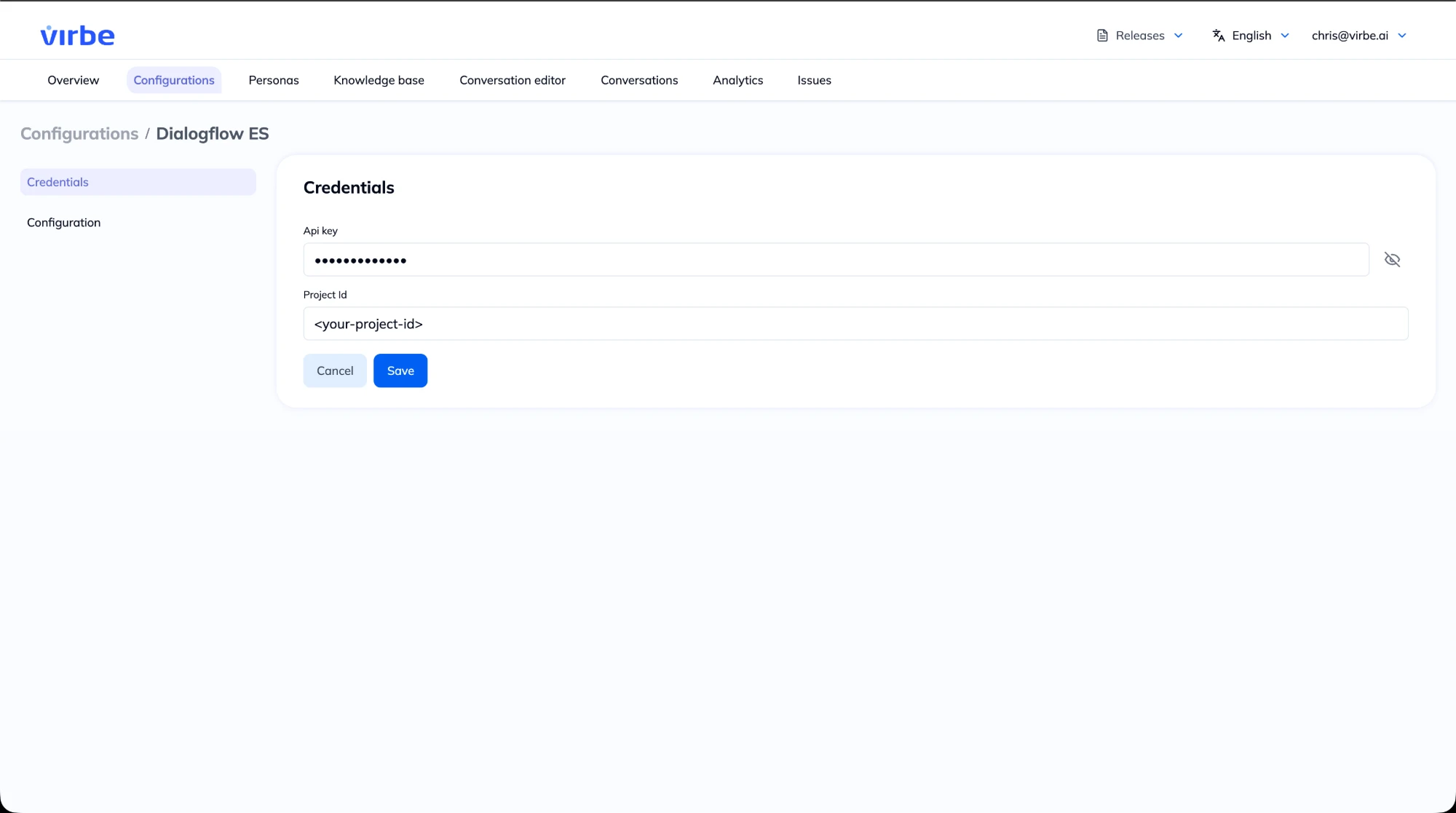
Credentials – Dialogflow ES
| Field | Description |
|---|---|
| Api key | The full JSON contents of a GCP service account key with access to the Dialogflow API (obfuscated after saving) |
| Project Id | The GCP project ID of your Dialogflow ES agent (found in the agent's settings, General tab) |
Credentials – Dialogflow CX
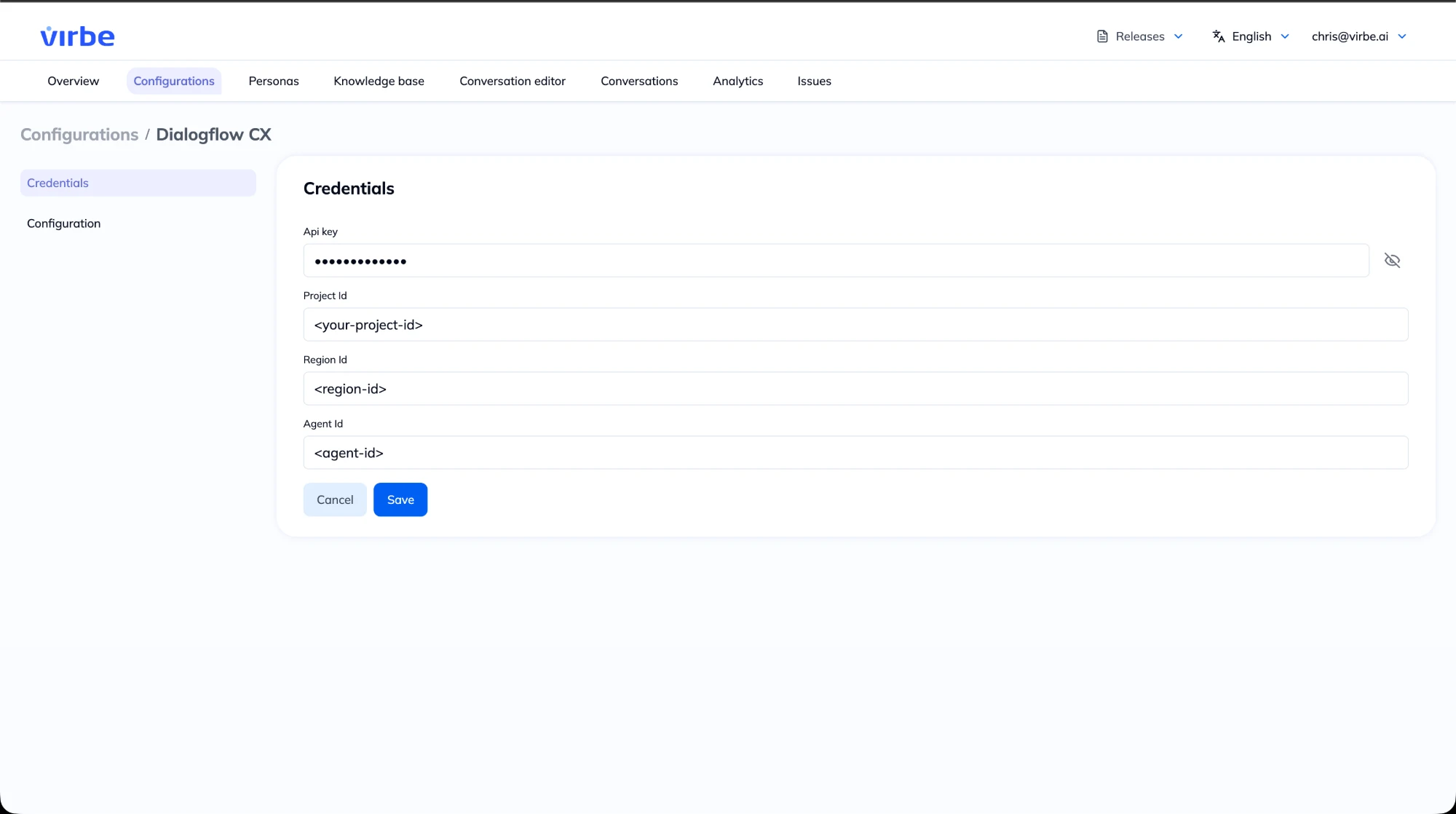
| Field | Description |
|---|---|
| Api key | The full JSON contents of a GCP service account key with access to the Dialogflow API (obfuscated after saving) |
| Project Id | The GCP project ID of your Dialogflow CX agent |
| Region Id | The region your CX agent is deployed in (e.g. europe-west1), as shown in the CX console |
| Agent Id | The ID of your CX agent (found in the agent's settings in the Dialogflow CX console) |
Finding Your Project ID
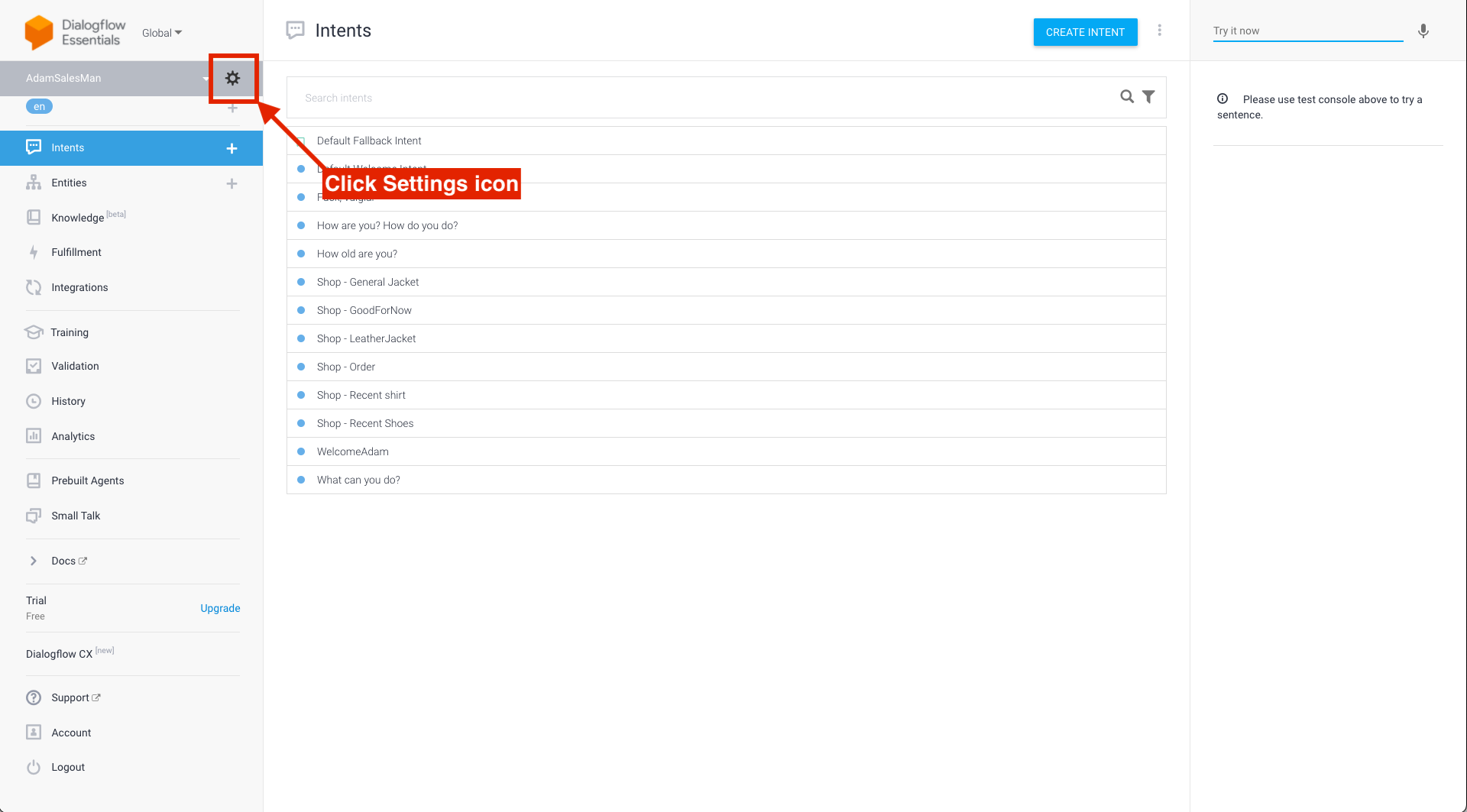
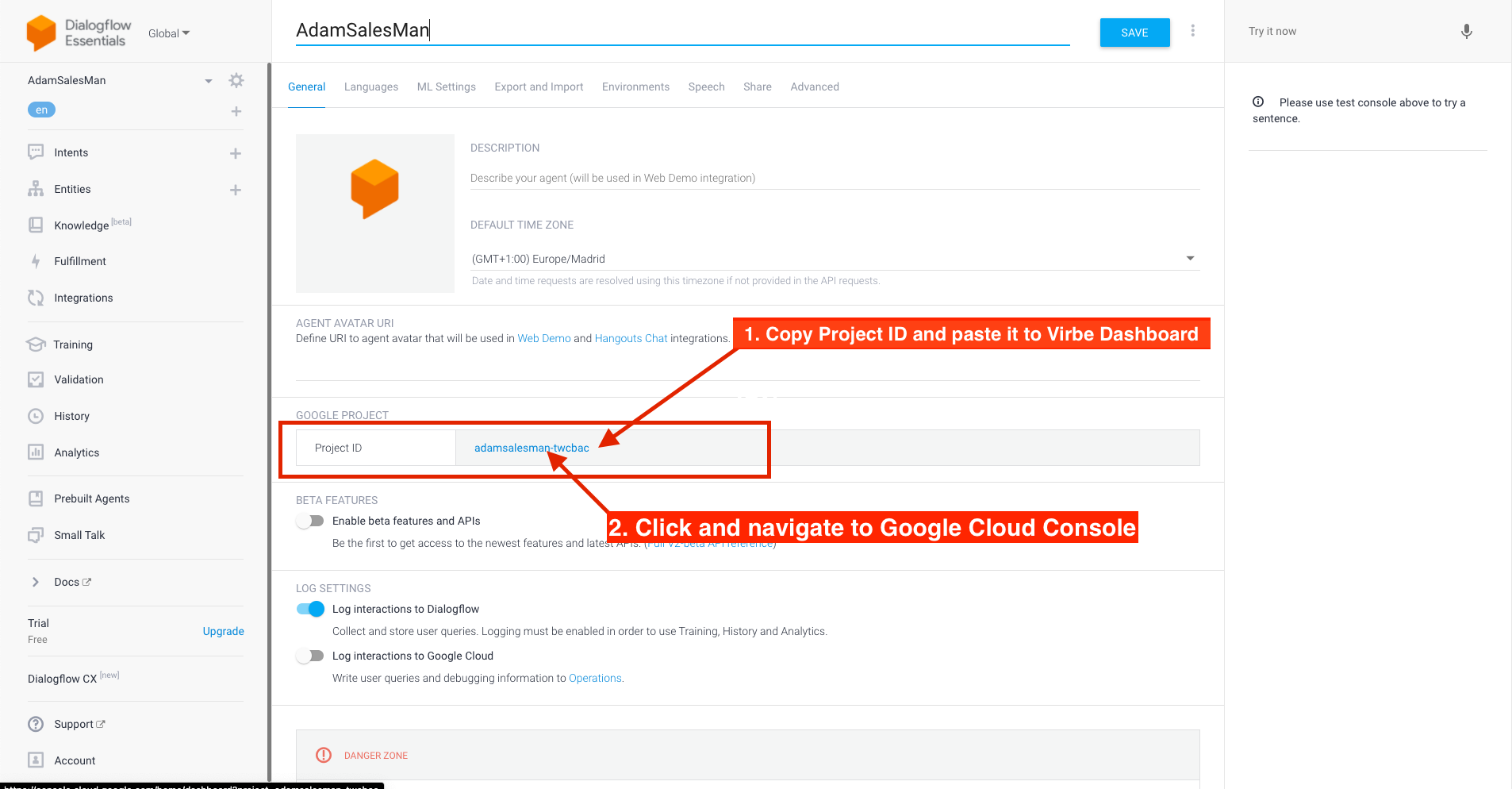
- Open the Dialogflow console and go to your agent's Settings
- On the General tab, copy the Project ID
- Paste it into the Project Id field of the engine configuration in the Virbe Dashboard
Generating a GCP Service Account Key (JSON)
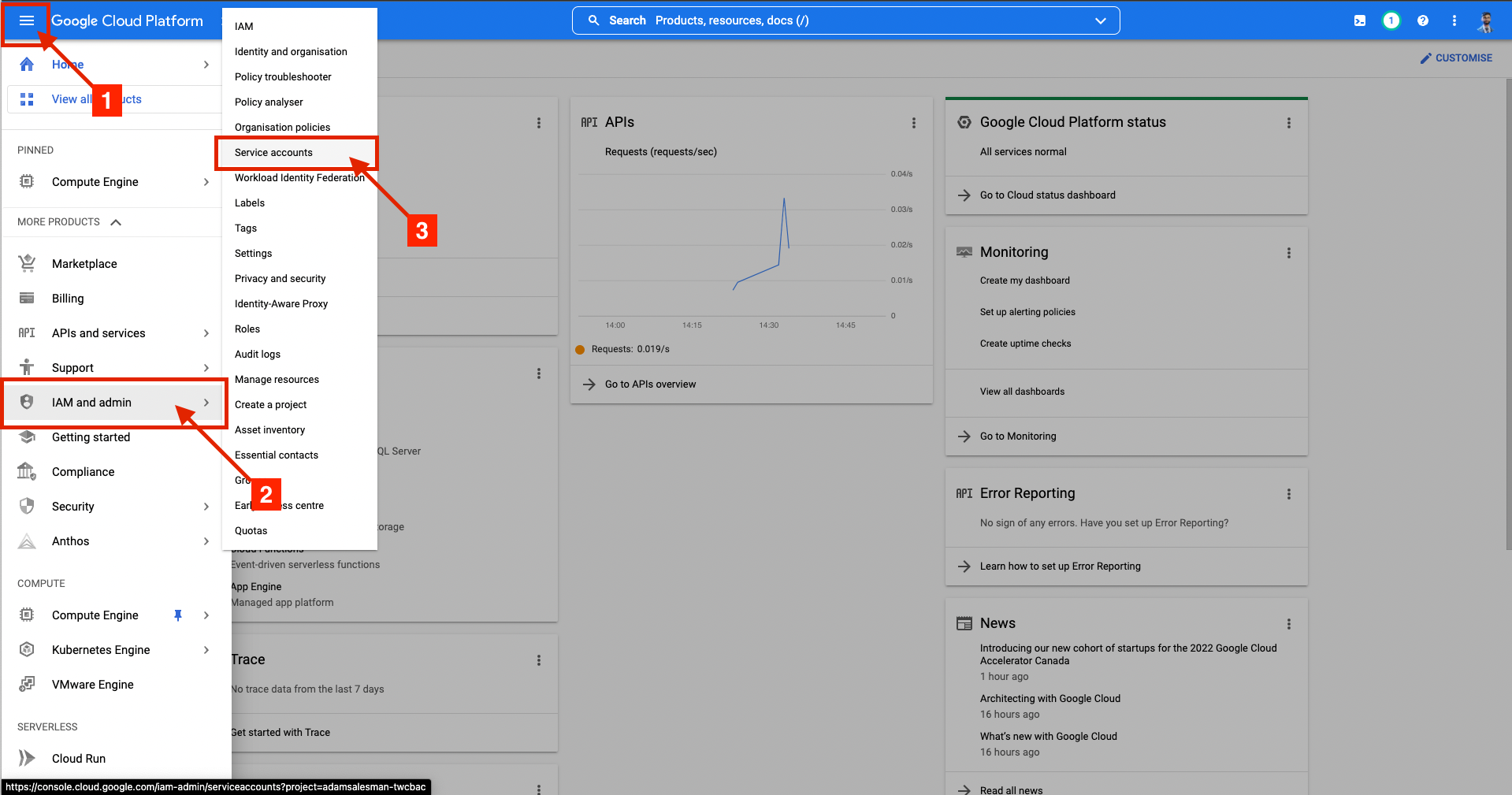
- In the Dialogflow console, click the Project ID to open the Google Cloud Console, then go to IAM & Admin → Service accounts
- Create a new service account with permission to use the Dialogflow API, or use an existing one from your Dialogflow project
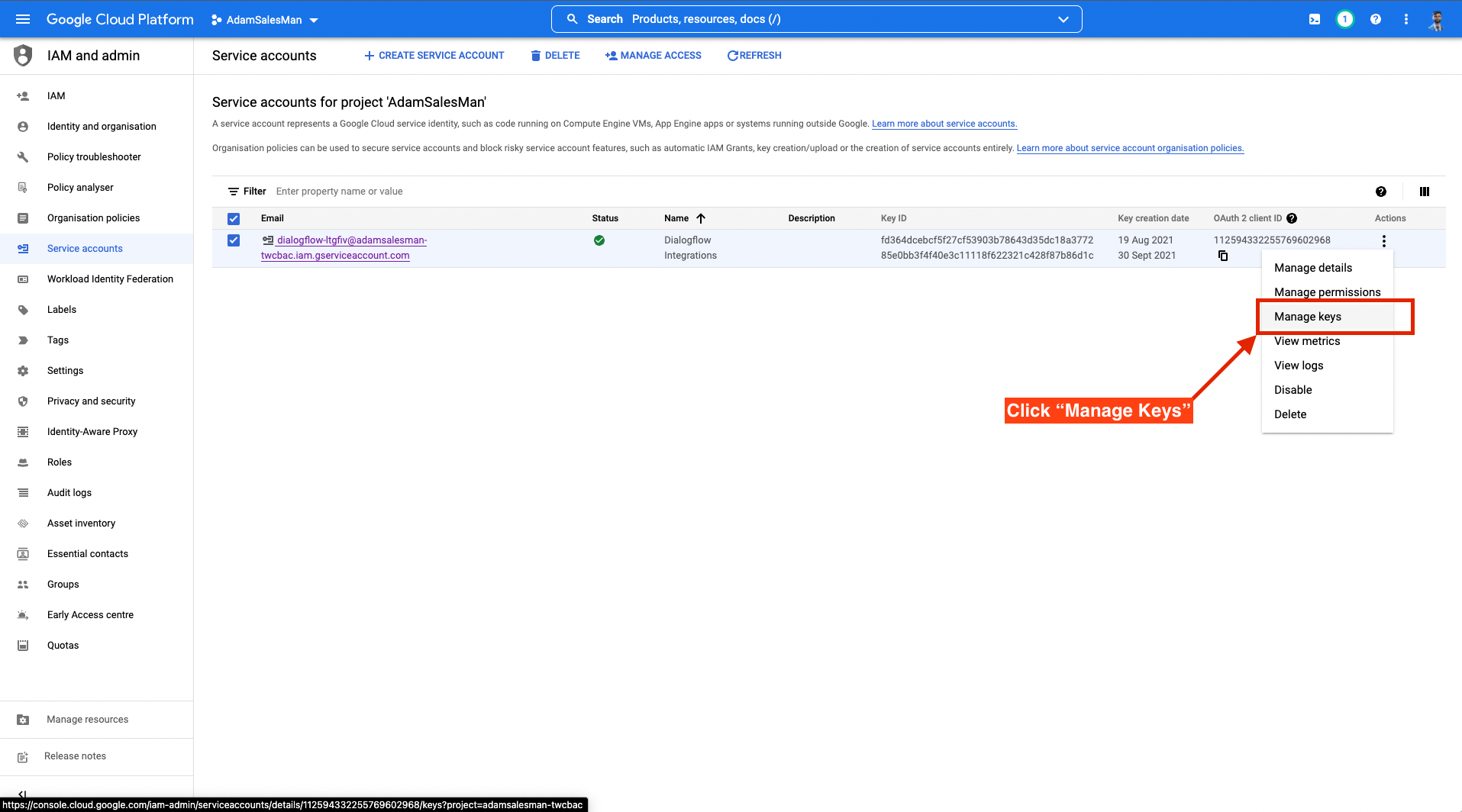
- Open the service account's menu and choose Manage keys
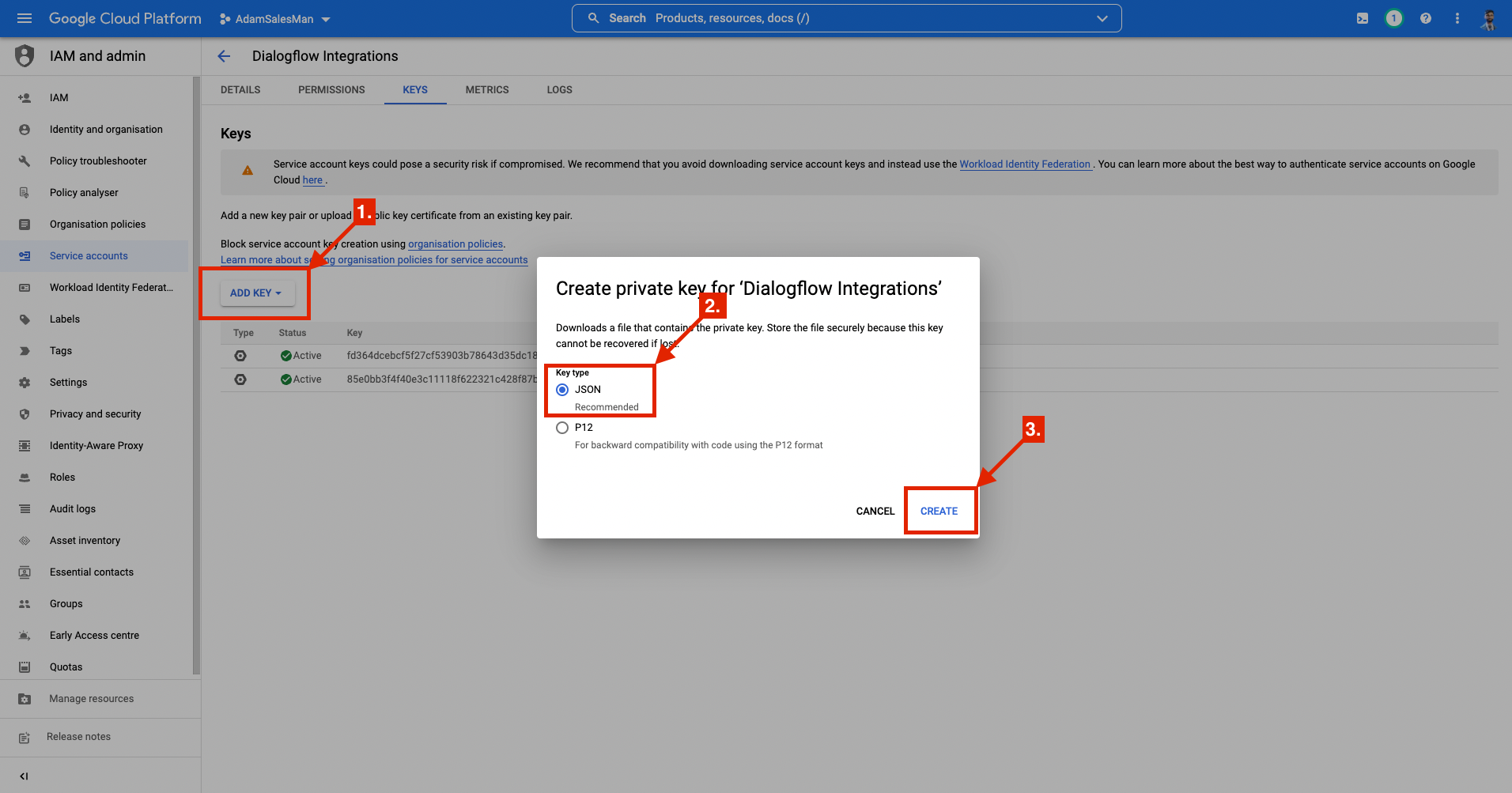
- Create a new JSON key (or reuse an existing one) and download it
- Open the JSON file in any text editor and copy-paste its full contents into the Api key field of the engine configuration in the Virbe Dashboard
The key is stored only in your Virbe instance, is obfuscated in the Dashboard, and is visible only to users you authorize. You can invalidate the key at any time in the Google Cloud Console and import a new one.
For issues with the Dialogflow or GCP side of the setup, refer to the official setup documentation for Dialogflow ES or Dialogflow CX, or contact Virbe support.
How It Works
When the Call Conv AI node in a Conversational Flow routes to the Dialogflow engine:
- Virbe sends the user's message to your Dialogflow agent
- Dialogflow matches an intent (ES) or advances the conversation flow (CX) and produces the response you configured
- Virbe delivers the response to the user
Google positions Dialogflow ES as its legacy edition, with Dialogflow CX as the successor. If you are starting a new project, prefer Dialogflow CX – or consider whether a Tool Agent with a Knowledge Base, DifyAI, or a Custom Endpoint better fits your needs.