Deployment
Get the embed code or configuration link to connect this profile to its touchpoint. Also covers version pinning.
The Deployment tab gives you the credentials and code needed to connect this profile to the real world. What you see here depends on the profile's touchpoint type.
Web Widget
Authorized domains
Before the widget will load on any website, you must authorize that site's domain. This prevents your profile credentials from being used on sites you don't control.
- In the Authorized domains section, enter your domain (e.g.
example.com) – withouthttps://or subpaths - Click Save
- Click Add new domain and repeat for any additional domains (staging, production, subdomains if needed)
The widget silently fails to initialize on unauthorized domains. If the virtual being doesn't appear on your site, check this list first.
Deployment mode
Choose how the widget appears on the page:
Floating – The widget is anchored to a top or bottom corner of the screen as a small avatar or icon. Users click to expand the full interface. This is the standard mode for most websites – unobtrusive and always accessible.
Embedded – The widget renders inside a container element you specify, inline with your page layout. Use this for dedicated assistant pages, fullscreen experiences, or in-content help sections.
Embed code
After selecting the deployment mode, copy the embed snippet shown:
<virbe-plugin
  profileId="your-profile-id"
  profileSecret="your-profile-secret"
  mode="embedded"
></virbe-plugin>
<script type="module" src="https://your-dashboard-name.virbe.app/web-component/virbe-plugin.es.js"></script>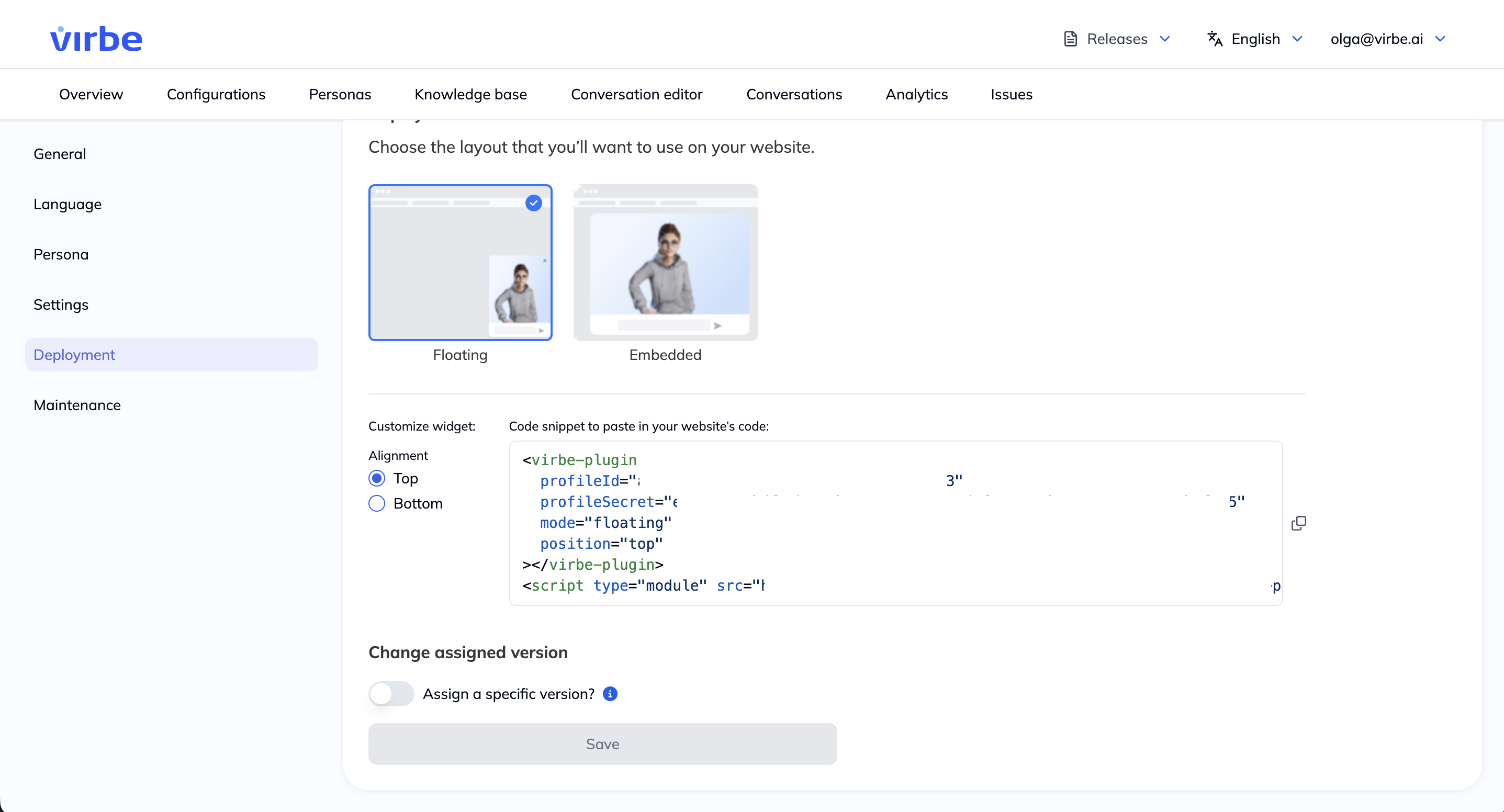
Paste this into every page where you want the widget to appear, just before the closing </body> tag. The profileId and profileSecret values are pre-filled – do not edit them.
For the full guide including testing, staging, and post-deployment updates, see Publish → Web Widget Deployment.
MetaHuman Kiosk
Kiosk Configuration Link
The Kiosk Deployment tab shows a Kiosk Configuration Link URL. This URL is entered into the kiosk application during setup – it tells the app which Virbe profile to connect to and loads all settings automatically.
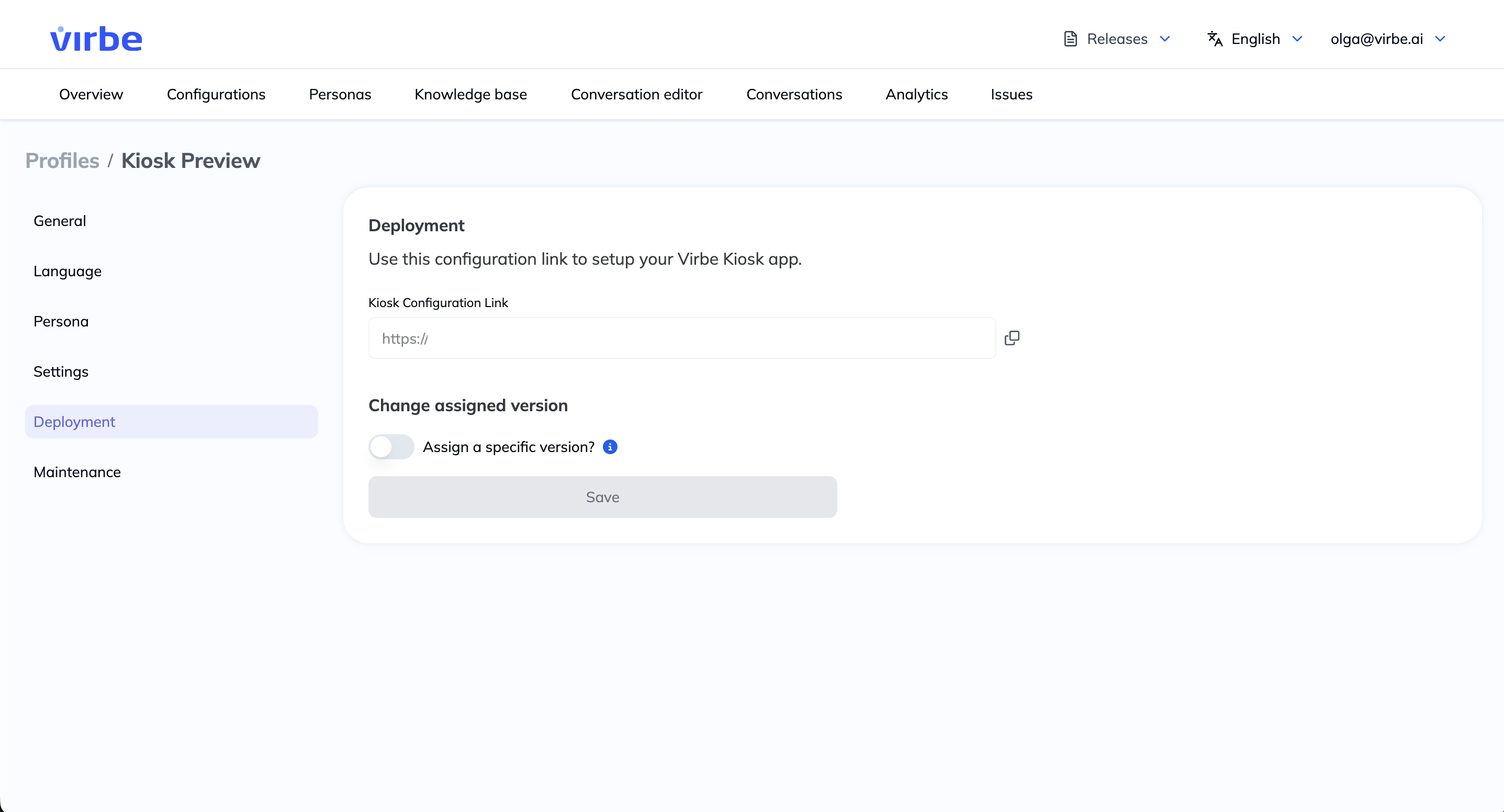
Copy this URL and follow the hardware setup instructions in Apps → Kiosk to complete the installation.
The configuration link is stable – it does not change when you change settings or publish new Pipeline versions. Once the kiosk is set up, updates to conversation logic are delivered automatically on publish.
Assigning version
By default, a deployed touchpoint always runs the Active (most recently published) Pipeline version. Every time you publish a new version, all deployments using this profile update automatically.
Assigning version locks this profile to a specific Pipeline version. The profile will continue running that version even after newer versions are published – useful for:
- A production environment that needs a controlled release process
- Keeping a backup profile frozen while testing a new version on a separate profile
To assign a version: toggle Assign a specific version and select the version from the dropdown.
Changing an assigned version is an advancved option. The default auto-update behaviour is recommended for most deployments. If you change the version and then make new updates and publish new versions, remember to manually update the pinned version when you're ready to promote.