Tool Agent
Virbe's primary agentic AI node – multi-turn conversations, RAG, guided steps, and full context access.
The Tool Agent is the most powerful response node in the Conversation Editor. Unlike the simpler LLM Response node (which generates a single reply), the Tool Agent is a full conversational AI agent that can hold multi-turn dialogues, retrieve knowledge from your Knowledge Base, execute structured multi-step tasks, and access the full conversation context and variables.
Use Tool Agent as the backbone of your virtual being's intelligence for any scenario involving open-ended conversation, complex reasoning, or structured task completion.
Available in: Agent type Conversation flow only.
Configuration
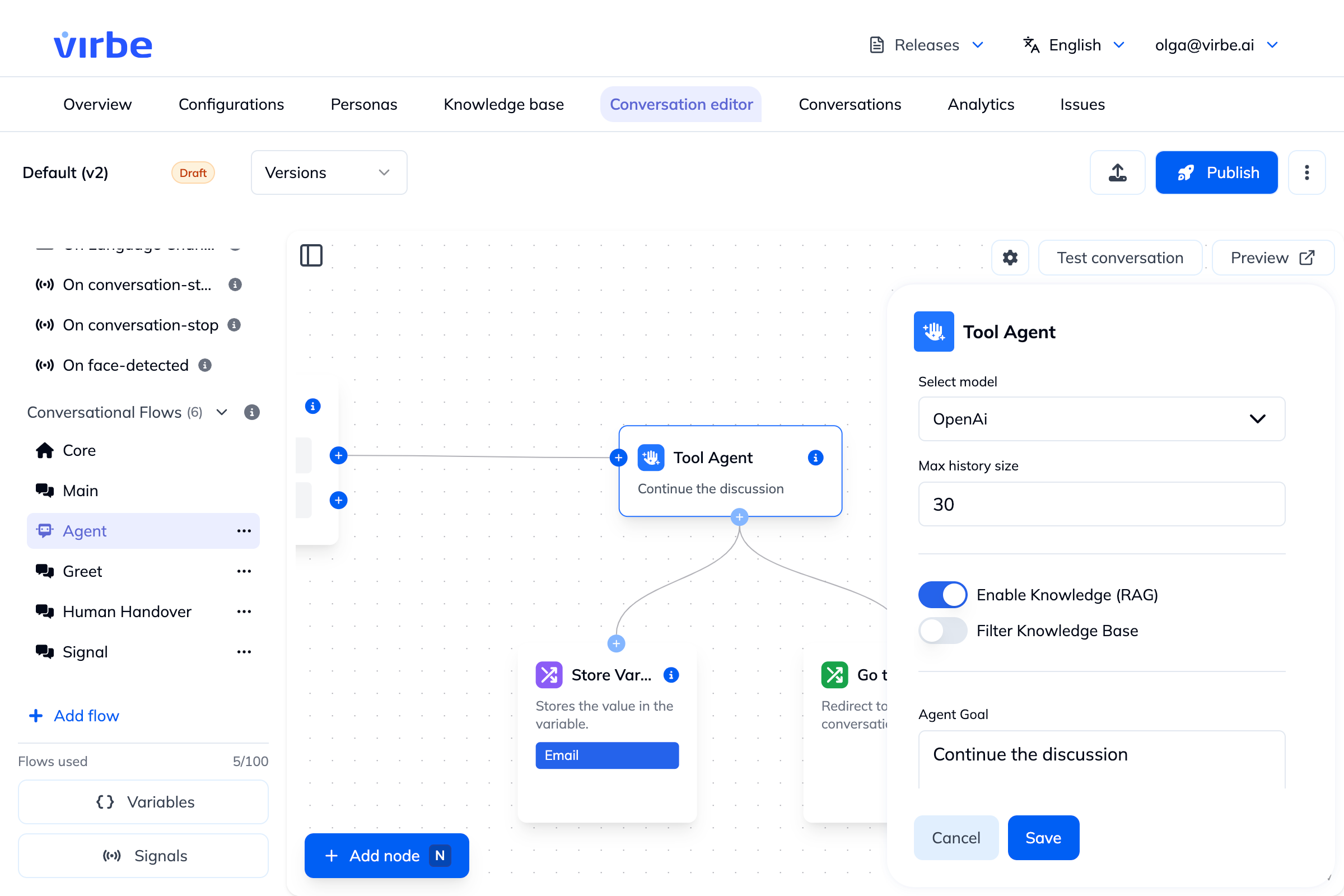
Click a Tool Agent node on the canvas to open its configuration panel on the right.
Select Model
Choose which AI model this agent should use. The dropdown lists all AI models you have configured under Configurations → AI Models (e.g., OpenAI GPT-4o mini, Azure OpenAI, Anthropic Claude).
Max History Size
The number of previous conversation turns to include as context when generating each response. A higher value gives the agent more memory of the conversation at the cost of more tokens per request.
Default: 30 turns
Reduce this number if you are hitting token limits or want to keep responses focused on the recent conversation.
Enable Knowledge (RAG)
Toggle this on to allow the Tool Agent to search your Knowledge Base for relevant information before generating a response. When enabled, the agent performs a semantic search across your knowledge collections and injects the retrieved content into the prompt as additional context. See Knowledge Base for how to structure and configure your documents.
Filter Knowledge Base
When RAG is enabled, this option lets you restrict which Knowledge Base collections the agent searches. Leave it empty to search all collections, or select specific ones to scope the agent's knowledge to a particular domain (e.g., only the "Products" and "Pricing" collections).
Override query settings
Advanced RAG retrieval settings – e.g. chunk similarity thresholds – allowing overriding the defaults.
Agent Goal
A concise, high-level description of what this agent is supposed to accomplish in this node. This is included in the system prompt.
Examples:
Continue the discussionHelp the user find the right productAnswer questions about our return policyCollect the user's name, email, and issue description
Keep this brief and outcome-focused.
System Instruction (Optional)
Additional system-level instructions that further shape the agent's behavior, persona, tone, or constraints. This is appended to the base system prompt along with the Agent Goal.
Examples:
Always respond in the same language the user writes in.If the user asks about pricing, always recommend they contact sales.You are a friendly assistant for Acme Corp. Never discuss competitors.
Insert Field
Click Insert field to open a searchable picker of dynamic values you can drop into the Agent Goal or System Instruction – pipeline variables, conversation and message metadata, profile details, source links, and built-in history-formatting functions, organized by category. Use the search box to jump straight to a field, or browse by category. Click any field to insert it at the current cursor position.
Guiding Steps (Optional)
Guiding steps let you define a structured sequence of tasks the agent should work through, one step at a time, in a single conversation. Each step is a natural-language instruction.
Example steps for a lead capture flow:
Greet the user warmly and introduce yourself as [assistant name].Ask for the user's full name.Ask for their email address.Ask what they need help with.Summarize what they've shared and confirm you'll be in touch.
The agent progresses through the steps as the conversation advances, only moving to the next step when the current one is complete. This gives you structured task completion without explicit branching logic.
Click + Add step to add a new step.
Report Long Processing Time
When toggled on, a visual indicator appears in the chat widget if the AI is taking longer than usual to respond. This prevents the user from thinking the conversation has frozen.
Outputs
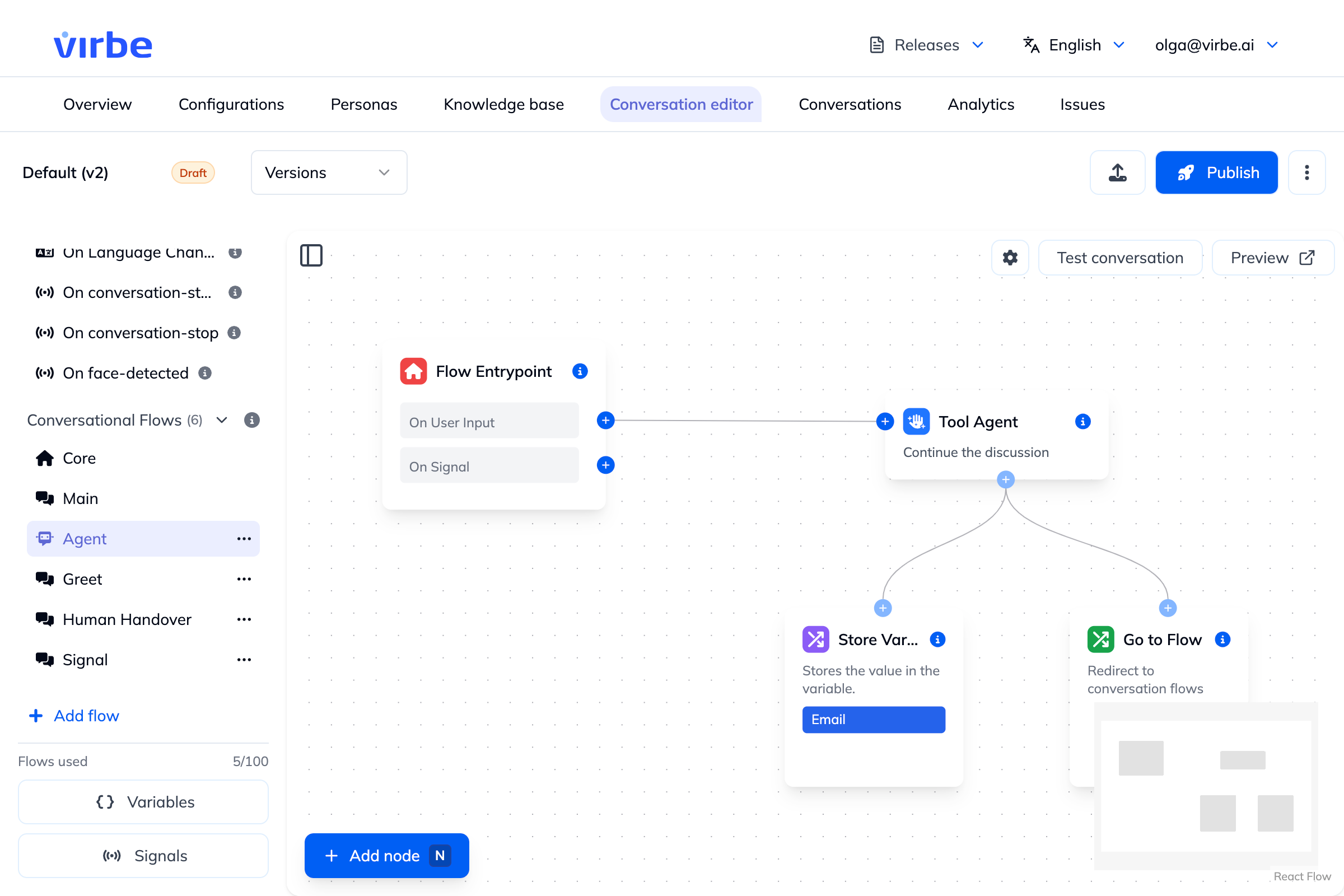
Unlike most response nodes, the Tool Agent doesn't have a single linear output that fires once and moves on. Instead, you connect tools to it – nodes like Go to Flow and Store Variable – which stay at the agent's disposal throughout the conversation, not in a fixed sequence.
- Go to Flow as a tool – the agent redirects to the connected flow either when the node's own configured conditions are met, or whenever the agent itself judges it's time to move the conversation there.
- Store Variable as a tool – connecting this tells the agent it's responsible for filling in that variable. The agent steers the conversation toward collecting the needed information, then stores it once it has an answer.
The agent decides which connected tool to use and when, based on its Agent Goal, Guiding Steps (if configured), and how the conversation unfolds. It keeps handling turns internally until either:
- A Guiding Step sequence completes (if configured)
- An external signal changes the active flow
- A connected Go to Flow tool is triggered and redirects execution elsewhere
Tool Agent vs. LLM Response
| Tool Agent | LLM Response | |
|---|---|---|
| Conversation turns | Multi-turn (holds a conversation) | Single-turn (unless left without a follow-up node, see above) |
| RAG / Knowledge Base | ✅ Yes | ✅ Yes |
| Guiding steps | ✅ Yes – structured task sequences | ❌ No |
| Variable access | ✅ Field picker | ✅ Field picker |
| Best for | Open-ended Q&A, lead capture, structured tasks | Quick single answers, FAQ responses |
Best practices
- Set a clear, specific Agent Goal – vague goals produce vague behavior.
- Use Guiding Steps for any task that requires collecting information in a specific order. It is more reliable than prompting the agent to follow steps in the System Instruction.
- Enable RAG whenever your virtual being needs to answer questions based on your organization's content, rather than general world knowledge.
- Use the Filter Knowledge Base option to keep agents focused – a product assistant probably shouldn't search your HR policy collection.
- Keep System Instruction concise. Very long system instructions can confuse the model or dilute important constraints.
- Set Max History Size to match the nature of the conversation: longer for complex ongoing dialogues, shorter for quick Q&A scenarios.